PicsPivot's image to base64 converter turns a JPG, PNG, WebP, AVIF, GIF, BMP or SVG file into a text-based encoded string you can paste directly into HTML, CSS, or JavaScript. Unlike converters that force sign-ups or cap uploads at a few hundred kilobytes, this tool processes files up to 20MB right in your browser with zero registration and no data sent to any server.
How to Convert an Image to Base64
- Add your image: Drop a JPG, PNG, WebP, AVIF, GIF, BMP or SVG file on the page, or choose one from your device. It is read in your browser and never uploaded.
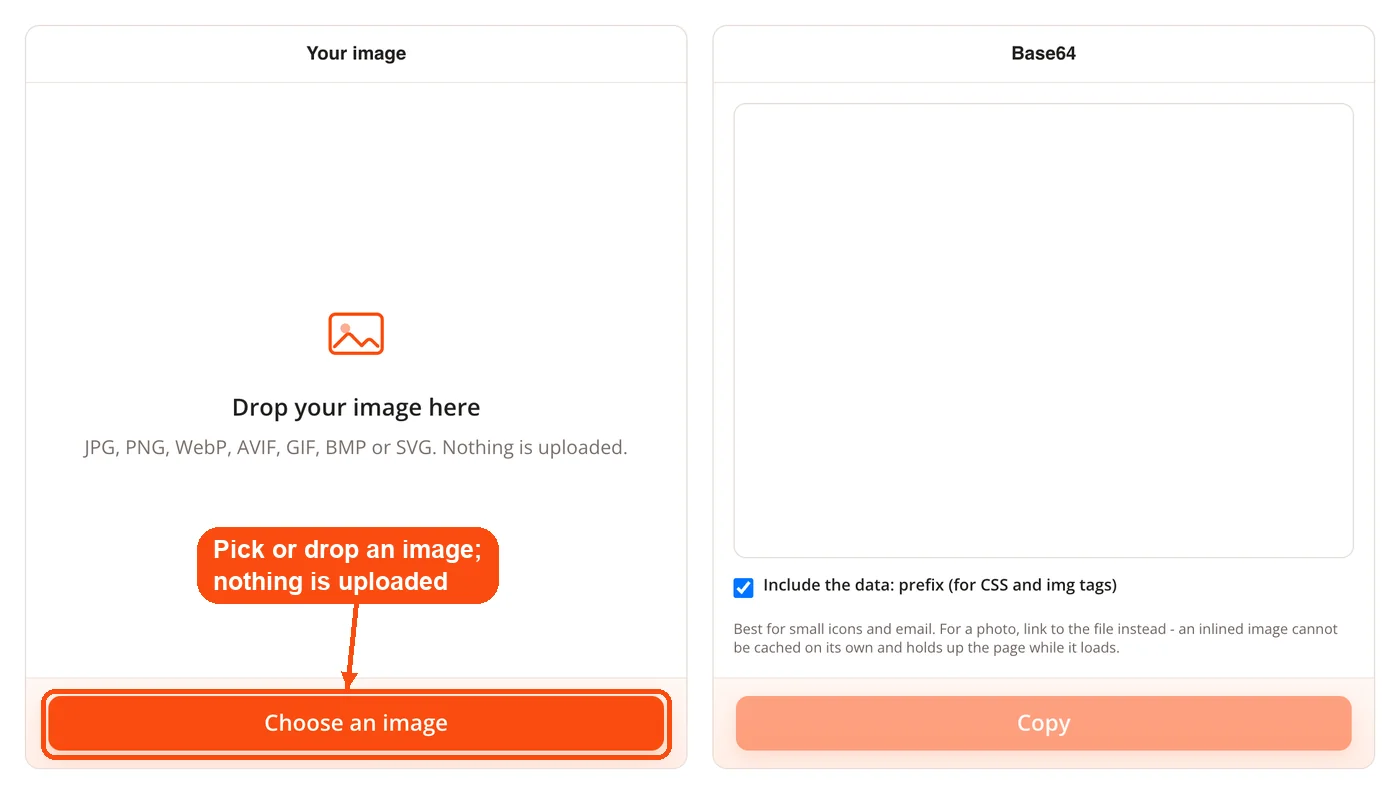
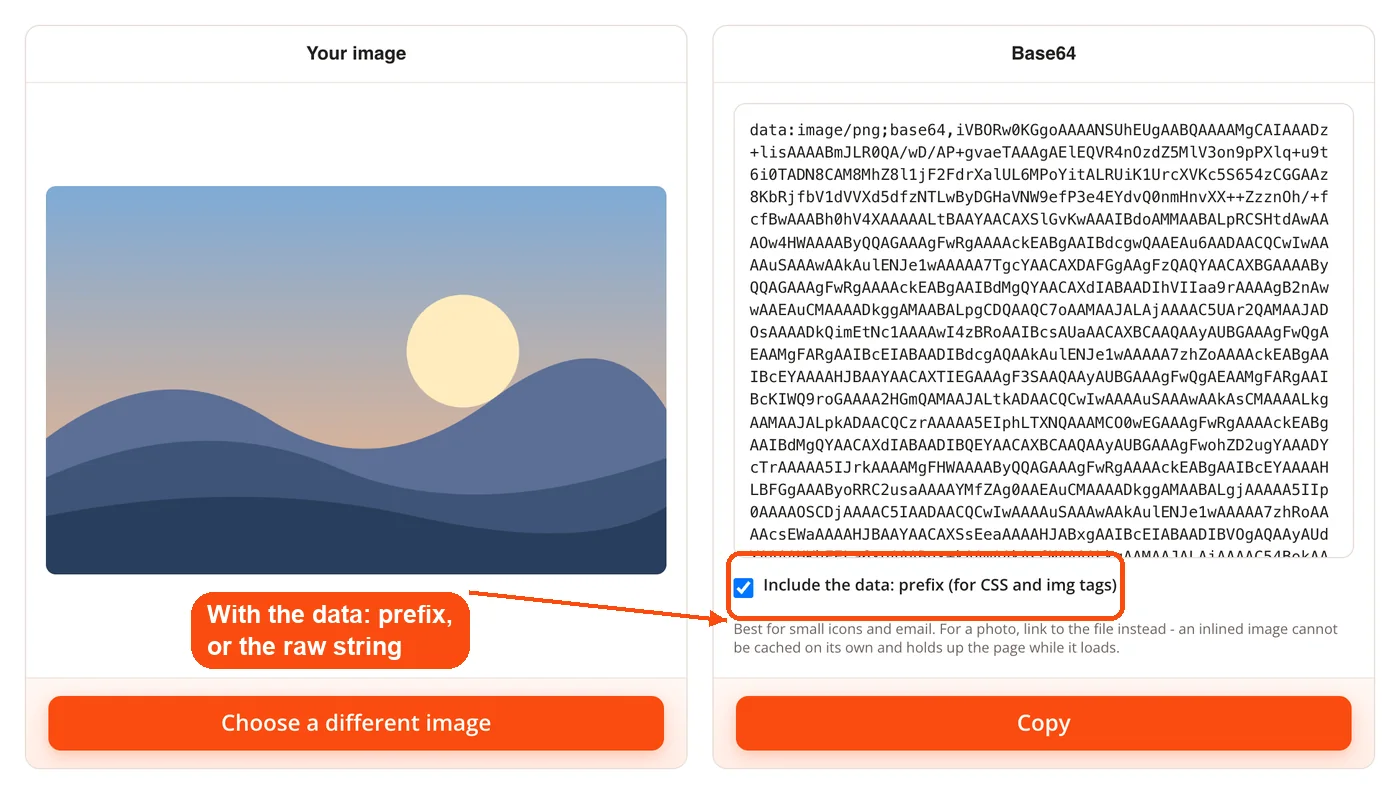
- Choose the format: The base64 string appears straight away. Keep "Include the data: prefix" ticked for a data URI you can paste into CSS or an image tag, or untick it for the raw string.
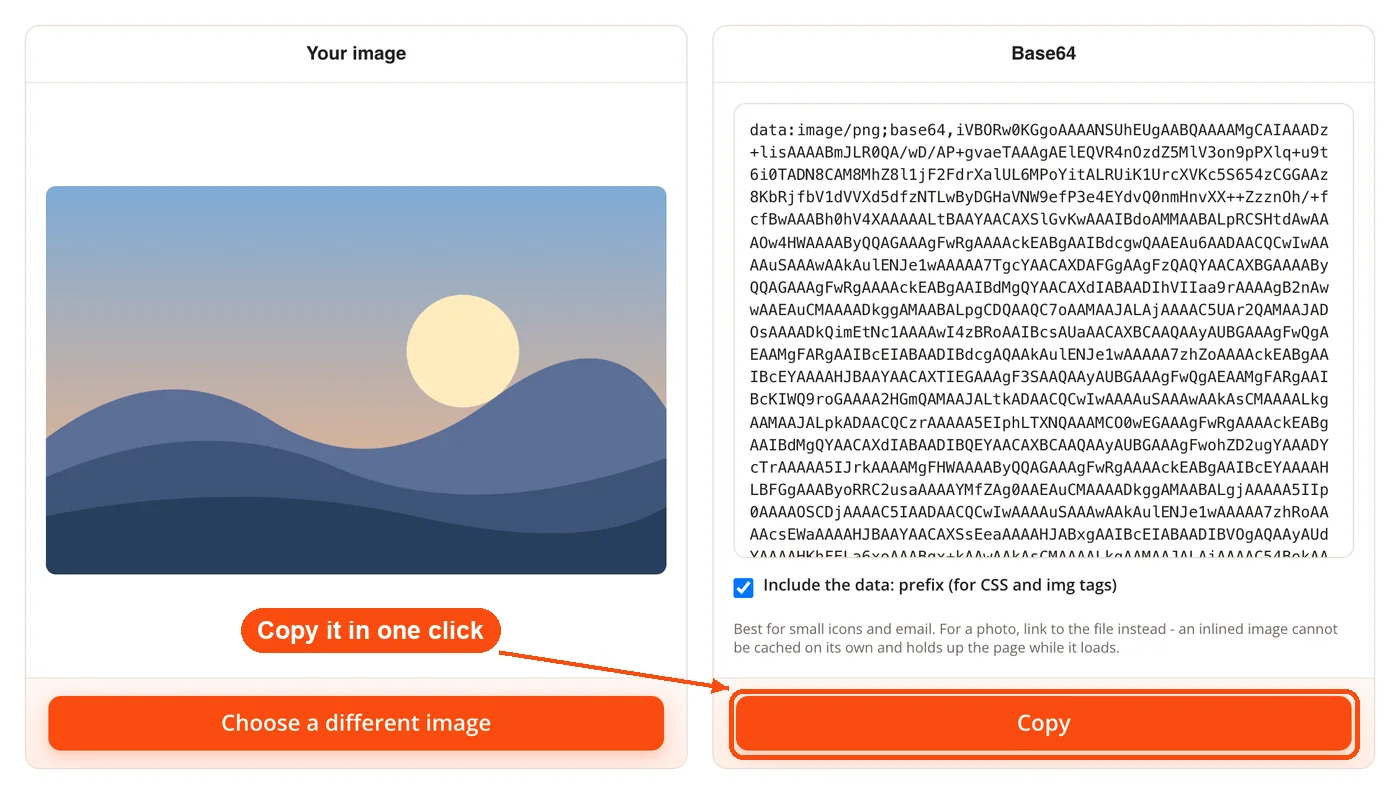
- Copy the output: Press Copy and paste the string where you need it. Base64 suits small icons and email; for a photo, link to the file instead, because an inlined image cannot be cached on its own.
That's the full workflow. No waiting on server processing, no download step, no account creation.
What the Image to Base64 Converter Does
Seven image formats: Add JPG, PNG, WebP, AVIF, GIF, BMP or SVG files. The converter detects the file type and applies the correct MIME prefix automatically.
Data URI generation: The output includes the complete
data:image/jpeg;base64,ordata:image/png;base64,prefix (or the matching one for other formats), so you can drop it directly into code without manual formatting.Browser-side encoding: Everything runs locally using JavaScript. Your images never leave your device, which matters if you're working with screenshots containing sensitive data or unreleased design assets.
One-click copy: Hit the copy button and the entire base64 string lands on your clipboard. No manual text selection, no risk of missing a few trailing characters.
20MB file limit: The cap keeps the tool responsive while covering most web-ready images. Icons, logos, thumbnails, and compressed photos all fit well within this range. If the data URI passes 2MB, the tool warns you, because some browsers ignore longer ones; run the image through the image compressor first.
No sign-up required: Open the page, add an image, convert. There's no account wall, no email prompt, no daily usage limit.
Why Encode an Image to Base64
Fewer HTTP requests: Every external image on a web page triggers a separate server request. Embedding a base64 string directly in your HTML or CSS eliminates that request entirely, which shaves milliseconds off load times for pages with many small graphics.
No broken images: A base64 string lives inside your code. It can't 404, it can't fail because someone moved a folder, and it doesn't depend on a CDN being online. Check your site's link health with the broken link checker to catch any remaining external image references that might fail.
Full privacy: The tool processes images entirely in your browser tab. Nothing gets uploaded to a remote server. If your file contains EXIF metadata with GPS coordinates or camera info, that data stays on your machine too.
Email-friendly embedding: About 40% of email recipients have external image loading turned off by default. Base64 images display regardless of that setting because they're part of the email's HTML body, not fetched from a remote URL.
Portable code: Components with embedded base64 assets don't break when you move them between projects, share them on GitHub, or distribute them as npm packages. The image data travels with the code.
Simpler build pipelines: Skip the image hosting step during prototyping. No S3 bucket, no Cloudflare setup, no asset pipeline configuration. Just encode and embed.
Works offline: Once the base64 string is in your HTML file, the image renders without an internet connection. That's a big win for progressive web apps and offline documentation. Test your pages with the mobile-friendly test to confirm they perform well on all devices.
When Base64 Makes Sense (and When It Doesn't)
Base64 encoding increases file size by roughly 33%. A 3KB icon becomes about 4KB as a base64 string. For small assets, that trade-off is worth it because you're eliminating an HTTP request that carries its own overhead (DNS lookup, TCP handshake, TLS negotiation). For files under 10KB, the performance math almost always favors base64.
But a 500KB photograph? That turns into roughly 667KB of text embedded in your HTML. Your page weight jumps, the browser can't cache that image separately, and the HTML file becomes harder to read and maintain. For anything over 10-20KB, serve the image as a separate file through a CDN. Run the page speed checker on your site to measure the real impact.
Here's a quick guide:
| Image Type | Typical Size | Base64 Recommended? |
|---|---|---|
| Favicons and tiny icons | 1-5KB | Yes, almost always |
| UI buttons and badges | 2-8KB | Yes |
| Small logos | 5-15KB | Case by case |
| Thumbnails | 10-50KB | Probably not |
| Photos and illustrations | 50KB+ | No, use external files |
The code-to-text ratio checker can show you whether large base64 strings are bloating your HTML beyond a healthy balance.
How Developers Put Base64 Images to Work
CSS Sprites Replacement
Instead of creating a single sprite sheet and calculating pixel offsets for each icon, encode individual icons as base64 strings in your stylesheet. Each icon gets its own background-image: url(data:image/png;base64,...) rule. No sprite math, no positioning headaches. For a site with 20+ icons under 3KB each, this approach saves both development time and HTTP requests.
HTML Email Campaigns
Email clients like Outlook, Apple Mail, and Gmail handle external images differently. Some block them, some cache them inconsistently. Embedding small logos and call-to-action buttons as base64 means your email looks right the moment someone opens it. Pair this with the HTML compressor to keep your email template lean after adding base64 data.
React and Vue Component Libraries
When you publish a component library to npm, external image dependencies create headaches for anyone installing it. Base64 encoded assets inside component files keep everything self-contained. A loading spinner component, for example, can carry its own animation frames without requiring users to configure asset paths or loaders.
REST API Image Payloads
JSON doesn't support binary data. When a mobile app needs to send a profile photo to a backend API, base64 encoding converts the binary image into a JSON-compatible text string. Most API frameworks (Express, Django, Spring Boot, Laravel) include built-in base64 decoders to reconstruct the image on the server side.
Offline-First Applications
Progressive web apps that need to function without network access can embed critical UI images as base64 in their service worker cache or HTML shell. The images load instantly from the local cache without any network dependency.
Data URI vs. Raw Base64: What's the Difference?
A raw base64 string is just the encoded text, something like iVBORw0KGgo... with no context about what it represents. Browsers can't do anything with a raw base64 string on their own.
A data URI wraps that string with metadata that tells the browser what it's looking at. The format is data:[MIME type];base64,[encoded data]. For a PNG, that's data:image/png;base64,iVBORw0KGgo.... This prefix is what makes the string usable in an <img> tag or CSS property.
PicsPivot outputs the complete data URI, not just the raw string. So you can paste the result directly into your code without adding the prefix yourself. If you ever need to go the other direction and decode a base64 string back into an image file, use the base64 to image converter.
Common Questions About Image to Base64
Yes, completely free with no usage limits. There's no account to create, no daily cap on conversions, and no premium tier hiding features behind a paywall. Convert as many images as you need.
The converter supports JPG, PNG, WebP, AVIF, GIF, BMP and SVG files up to 20MB each. It warns you when the data URI passes 2MB, because some browsers will not load longer ones.
No. The entire encoding process runs in your browser using JavaScript. Your image file never leaves your device. This makes it safe for working with confidential screenshots, unreleased designs, or any file you'd rather keep private. Strip metadata beforehand with the EXIF data remover for extra privacy.
Base64 encoding converts every 3 bytes of binary data into 4 ASCII characters. That translation adds roughly 33% to the file size. A 10KB image produces a base64 string of about 13.3KB. For small images, the trade-off is worth it because you eliminate an HTTP request. For large images, serve them as external files instead.
Yes, and it's one of the best use cases. Around 40% of email recipients block external images by default. Base64 images render immediately because they're part of the email body. Keep them small though, since large base64 strings can push your email past size limits that some providers enforce (typically 100-150KB total).
Base64.guru and CodeBeautify both offer solid image encoding tools. PicsPivot's 20MB limit covers most web-ready images, and the key differences are zero ads, no sign-up, and guaranteed browser-side processing. Pick whichever fits your file sizes best.
Avoid base64 for images larger than 10-20KB. The 33% size increase plus the loss of browser caching makes external files more efficient at that point. Also skip base64 for images that appear on multiple pages, since external files get cached once and reused across page loads. Check your overall page performance with the page size checker.
Not at all. Base64 is an encoding method, not a compression format. It converts binary data to text without changing a single pixel. The decoded image is identical to the original. If you want to reduce file size before encoding, use the image resizer to scale dimensions down first.
Absolutely. Place the data URI inside a background-image property like this: background-image: url(data:image/png;base64,...). This works in all modern browsers including Chrome, Firefox, Safari, and Edge. It's a popular technique for embedding small icons and decorative elements directly in stylesheets. Compress your CSS afterward with the CSS minifier to keep file sizes tight.
Yes. In JavaScript, the FileReader API with readAsDataURL() converts files to base64. Python has a built-in base64 module. Java offers Base64.getEncoder(). But for quick, one-off conversions where you just need the string, a browser-based tool is faster than writing and running a script.
