A favicon generator converts any standard image into a properly formatted ICO file that browsers display in tabs, bookmarks, and search results. PicsPivot's Favicon Generator accepts JPG, PNG, WebP, AVIF, GIF, BMP and SVG images and produces a ready-to-use set (a favicon.ico holding 16, 32 and 48 px, six PNG sizes and a site.webmanifest), all without requiring a sign-up or installing any software on your computer.
How to Convert an Image to a Favicon
- Add your picture: Drop or choose a JPG, PNG, WebP, AVIF, GIF, BMP or SVG. Square pictures work best; a wide one is cropped from the centre. Previews of a browser tab, a Google result and a phone home screen update as you change things.
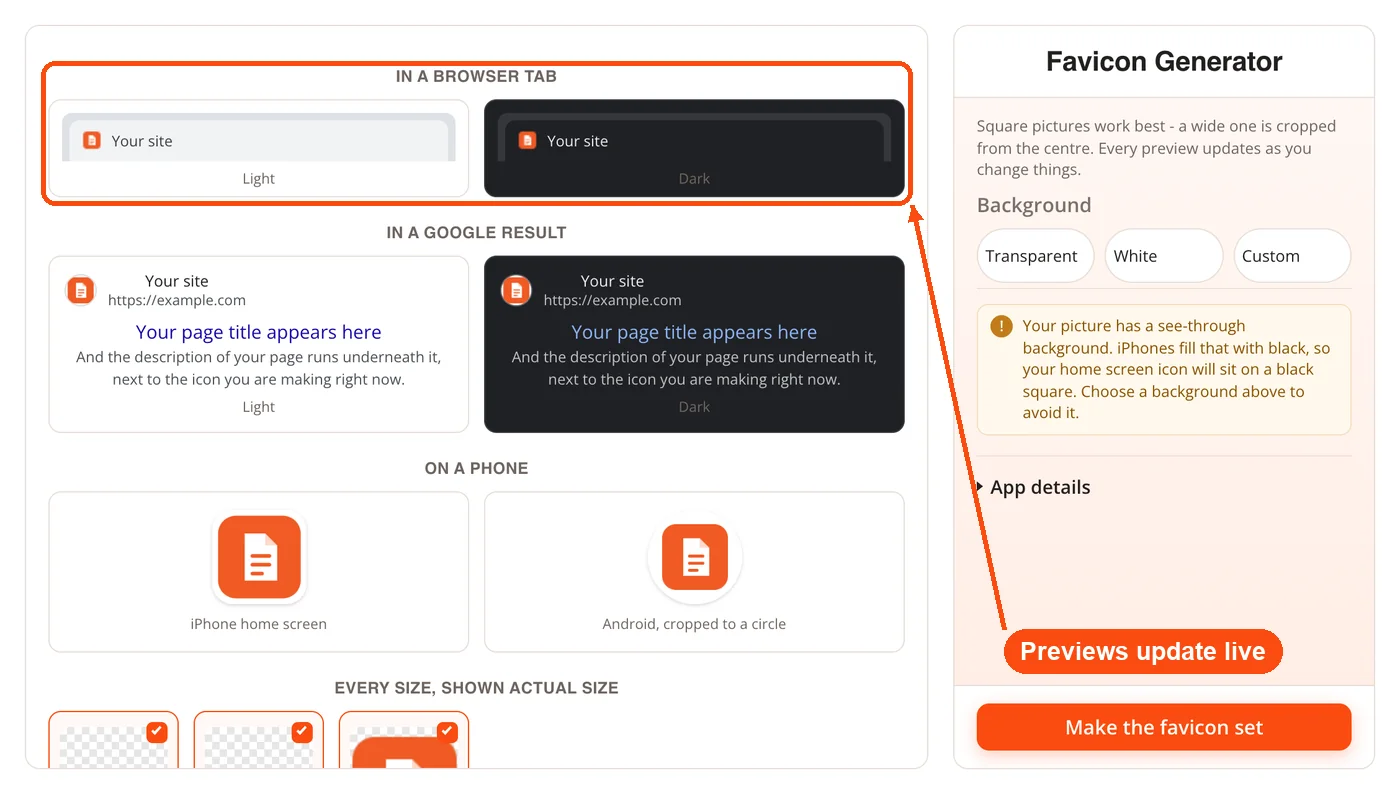
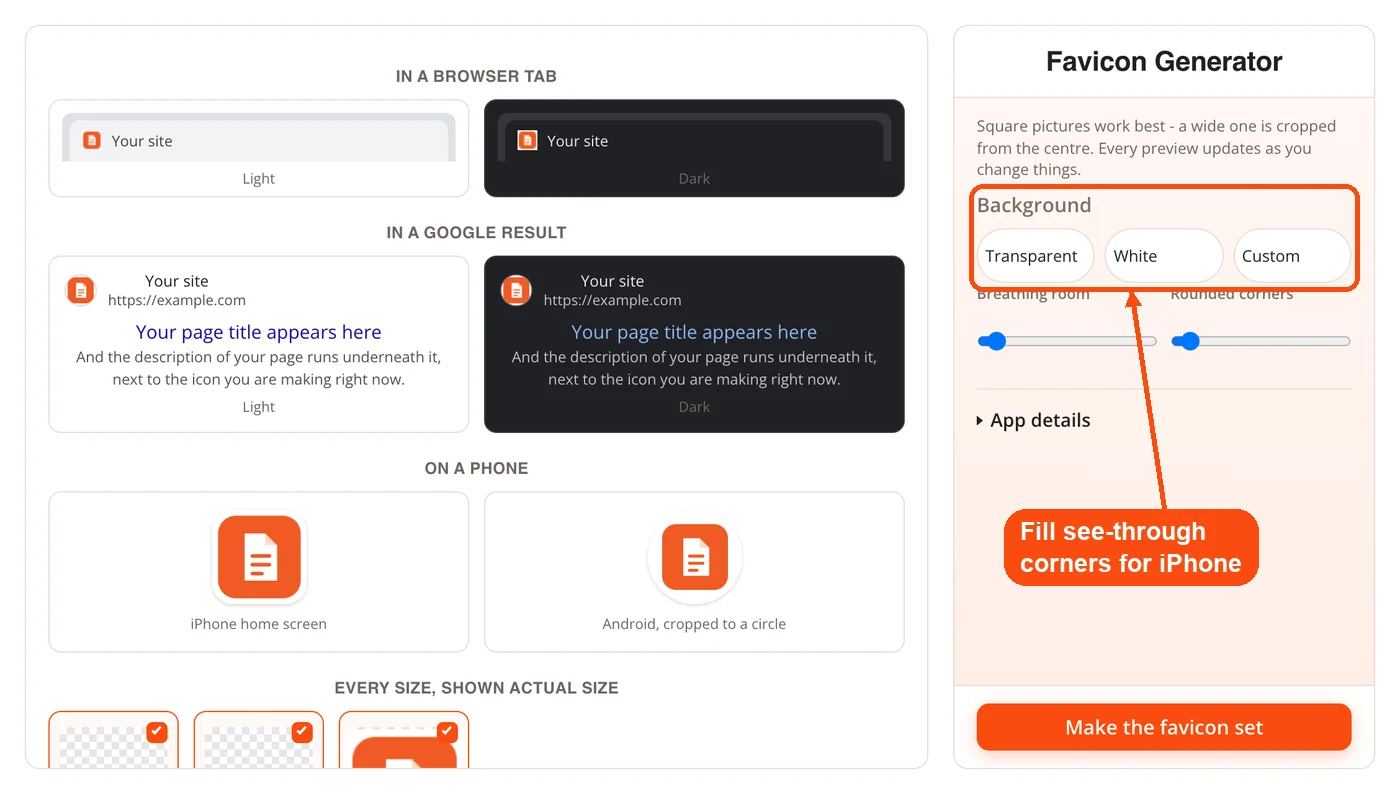
- Pick a background: Keep it transparent, or fill it with white or a colour of your own. iPhones fill see-through corners with black, so the tool warns you when your picture has them. With a background you can also set the breathing room and rounded corners.
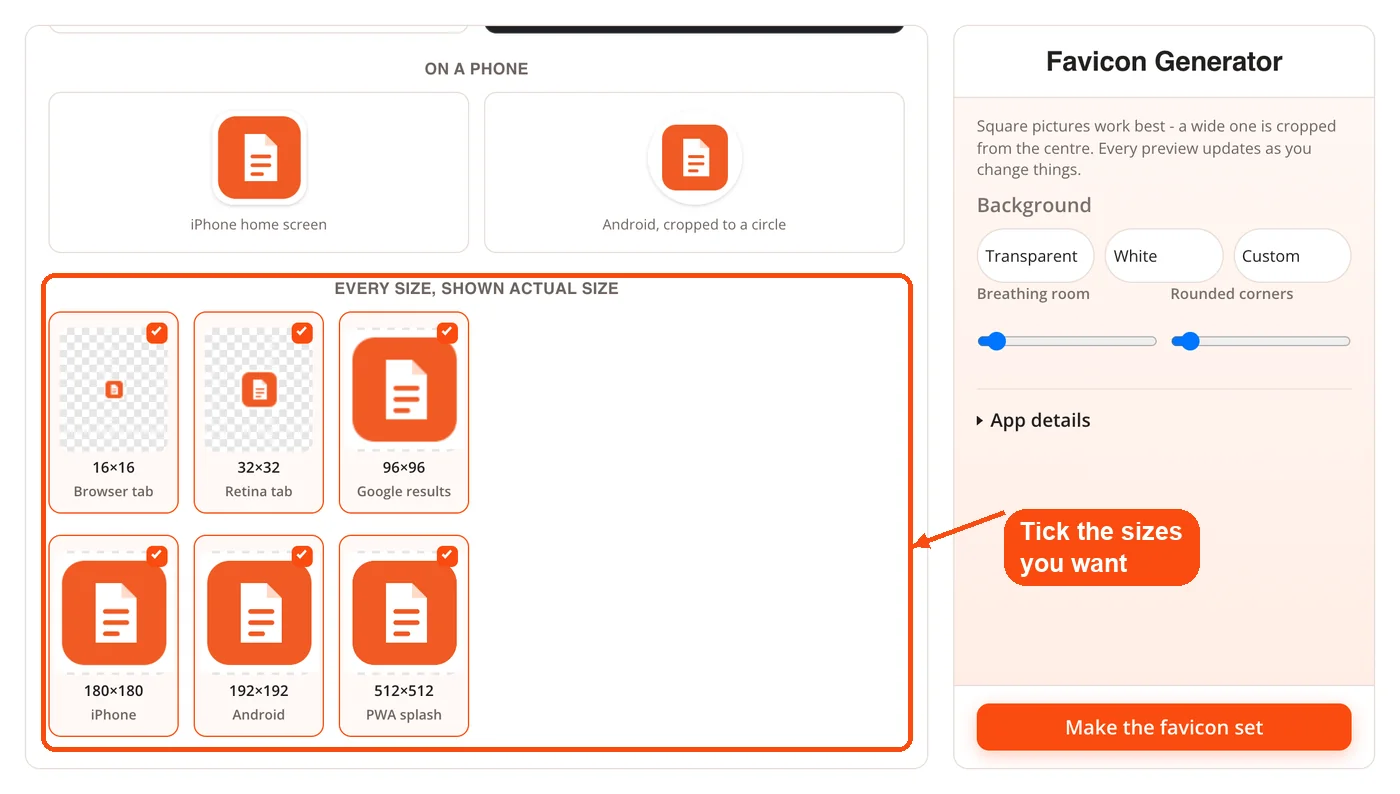
- Choose the sizes: Every size is shown at actual size, from 16×16 for a browser tab to 512×512 for an app splash screen. Untick any you do not need. Under App details you can set the site name, short name and theme colour.
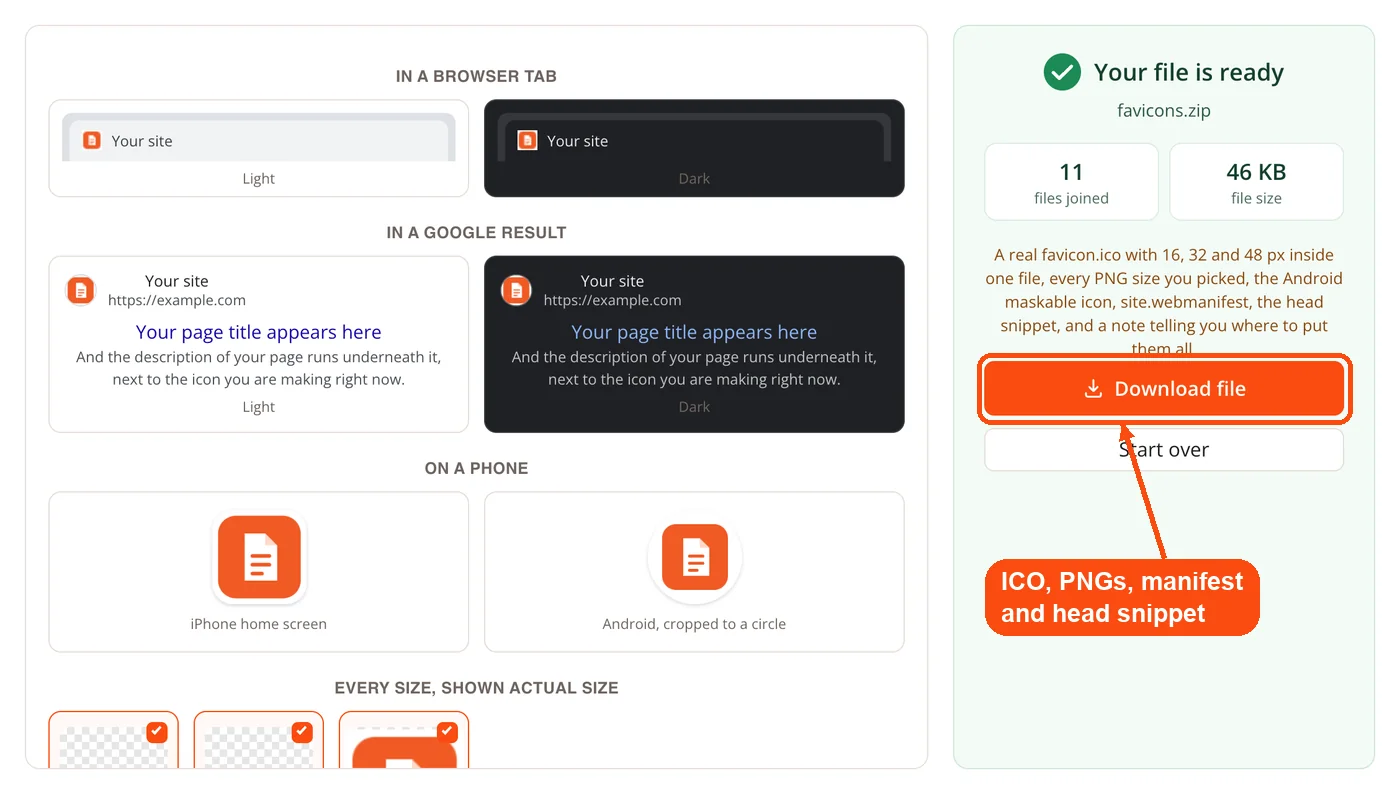
- Make the set and download it: Press Make the favicon set. The ZIP holds a real favicon.ico with 16, 32 and 48 px inside, the PNG sizes you picked, an Android maskable icon, site.webmanifest, the head snippet and a note on where each file goes.
What the Favicon Generator Does
The tool handles one job and does it well: turning your existing images into browser-ready ICO files. Here's what you get.
Multi-format input: Add JPG, PNG, WebP, AVIF, GIF, BMP or SVG files. Most competing tools only accept PNG, so you won't need to convert your logo first.
Six PNG sizes plus ICO: Generate favicons at 16x16, 32x32, 96x96, 180x180, 192x192 and 512x512 pixels, plus a favicon.ico holding 16, 32 and 48. Each size serves a different purpose (browser tabs, Google results, iPhone and Android home screens).
ICO file output: The tool produces a standard .ico file, so it also works as a PNG to ICO converter, and ICO is the most broadly supported favicon format across Chrome, Firefox, Safari, Edge, and legacy Internet Explorer versions.
Browser-based processing: Everything runs in your browser. No software to download, no plugins to install. Your image doesn't sit on a server waiting to be processed.
No file size bloat: The resulting ICO file is compact enough to load instantly on any connection speed.
Instant conversion: Click the button, get your file. There's no queue, no processing delay, and no email verification step standing between you and your favicon.
Why Use This Favicon Generator
Zero account required: Unlike Canva (which needs a login) and favicon.io (which pushes you toward multiple workflows), PicsPivot lets you add an image and convert it without creating any account. One page, one task, done.
Works with the image you already have: Got a JPEG logo from your designer? A GIF version of your brand mark? Use it directly. No need to convert to PNG first using a separate image resizer or converter.
Built around ICO output: Alongside the Apple Touch icon, Android PNGs and manifest file, PicsPivot builds the one format every website still needs. ICO files work in every browser, including older versions that don't support PNG or SVG favicons.
No watermarks or usage caps: Generate as many favicons as you need. Running 12 client websites? Batch through them all in a few minutes with no restrictions.
Mobile-friendly interface: The whole conversion flow works on phones and tablets, so you can create a favicon from a coffee shop or a client meeting without needing your laptop.
Pairs well with other ToolsPivot tools: After setting up your favicon, run a quick check with the website SEO checker to confirm your site's overall health, or use the meta tag generator to get the rest of your head section in order.
Favicon Sizes and Where They Show Up
Not all favicon sizes do the same thing. Picking the right one depends on where you want your icon to appear.
| Size | Where it appears | When to use it |
|---|---|---|
| 16x16 | Browser tabs (standard screens) | Every website needs this. It's the classic favicon size. |
| 32x32 | Browser tabs (Retina/HiDPI screens), Windows taskbar shortcuts | Best choice for most sites. Looks sharp on modern displays and scales down to 16x16 cleanly. |
| 48x48 | Windows desktop shortcuts, Google search results | Google requires a multiple of 48x48 for search result favicons. Include this if SEO matters to you. |
If you're unsure, go with 32x32. It covers browser tabs on both standard and Retina screens, and most browsers handle the downscaling to 16x16 without making your icon look blurry. For a complete multi-platform setup, you'd also want 180x180 for Apple Touch icons and 192x192 for Android home screens, but those use PNG format, not ICO. PicsPivot's generator makes those PNGs as well as the ICO, which remains the foundation of any favicon setup per the W3C recommendation first published in 2005.
Who Needs a Favicon Generator?
Freelance web developers
You're building three WordPress sites this month. Each client sent their logo as a JPEG. Instead of opening Photoshop, resizing, exporting as ICO, and repeating for each project, run all three through PicsPivot in under two minutes. Then check each site with the page speed checker to make sure the favicon isn't the only thing you forgot.
Small business owners launching a website
You built your site on Shopify or WordPress and it looks great, but there's a blank icon in the browser tab. That generic globe icon (or worse, a blank square) signals "unfinished" to visitors. Add your logo, generate the ICO file, and your site looks polished before launch day. Google shows favicons in search results too, so this small detail affects how your listing appears alongside competitors.
Marketing teams managing multiple brands
Agencies running 20+ client websites need efficient workflows. The Favicon Generator eliminates design team involvement for a task that takes seconds. Generate favicons for each brand, package them into the client deliverables, and move on to work that actually needs creative input.
Bloggers and content creators
A personal brand favicon (your initials, a simple icon, even a photo cropped tight) makes your blog recognizable in a row of ten open tabs. Visitors who bookmark your site see that icon every time they scan their bookmarks bar. That recognition adds up over time. Use the Open Graph generator alongside your favicon setup to control how your content appears when shared on social platforms.
Designing a Favicon That Works at Small Sizes
A 16x16 pixel canvas is tiny. Your detailed company logo with gradients and fine text will turn into an unreadable smudge at that scale. Good favicons share a few traits.
Simple shapes read clearly. Think of the favicons you actually recognize: Google's multicolored "G," GitHub's octocat silhouette, Twitter/X's bird outline. None of them include the full company name. They're all single shapes with high contrast against the tab background.
If your logo has text, drop it. Use just the icon portion, or a single letter from your brand name. A bold "M" on a colored background is more recognizable at 16 pixels than "MyCompany" crammed into a square.
Test against both light and dark backgrounds. Browser tabs can be white, gray, or dark depending on the OS theme and browser settings. A favicon that disappears on dark mode loses half its value. Add a thin border or choose colors that pop on both.
Before adding it to the generator, prepare your source image using the image compressor to trim file size, and make sure it's perfectly square. Non-square images are cropped from the center, which can cut off the edges of a wide logo.
Adding Your Favicon to Different Platforms
Once you've generated and downloaded your ICO file from PicsPivot, installation depends on your platform.
Static HTML sites: Upload favicon.ico to your site's root directory (so it's accessible at yourdomain.com/favicon.ico). Add this tag inside your <head> section:
<link rel="icon" type="image/x-icon" href="/favicon.ico">
WordPress: Go to Appearance > Customize > Site Identity > Site Icon. WordPress accepts PNG for this setting, but you can also place your ICO file in the root via FTP and reference it in your theme's header.php. Validate your setup with the website source code viewer to confirm the link tag is rendering correctly.
Shopify: Upload under Online Store > Themes > Customize > Theme Settings > Favicon. Shopify converts your upload automatically, but starting with a clean ICO or 32x32 PNG gives the best results.
Squarespace and Wix: Both platforms have a dedicated favicon upload field in their site settings. Upload the generated file and preview it in a new browser tab.
A common mistake: browsers cache favicons aggressively. If you upload a new favicon and the old one still shows, clear your browser cache or try loading the page in an incognito window. Some browsers hold onto cached favicons for weeks. You can verify what's actually being served by checking your site with the HTTP headers tool to inspect the response.
Common Questions About Favicon Generators
Yes, 100% free with no usage limits. There's no account to create, no daily cap on conversions, and no watermark on the output file. Generate as many favicons as you need for personal or commercial projects.
The generator accepts JPG, PNG, WebP, AVIF, GIF, BMP and SVG files. For the sharpest results, use a square PNG image with a transparent background. Non-square images are cropped from the center, which can cut off the edges of logos with unusual aspect ratios.
32x32 pixels is the safest all-purpose choice. It looks sharp on Retina screens and scales down to 16x16 cleanly in standard browser tabs. If you want your favicon to display well in Google search results, also generate a 48x48 version, since Google requires favicons at multiples of 48 pixels.
Technically, no. But sites without favicons display a generic blank icon in browser tabs, making them look unfinished or untrustworthy. Favicons also appear in Google search results, bookmarks, and browser history. Skipping one means missing a branding opportunity that takes less than 60 seconds to set up.
Favicon.io splits its workflow across multiple pages (text, image, emoji) and RealFaviconGenerator focuses on multi-platform icon packages. PicsPivot keeps it simple: one page, add an image, pick the sizes, download a ZIP with your ICO file. If you need just a standard browser favicon without the complexity, it's the fastest path.
You can, but photos lose almost all detail at 16x16 or 32x32 pixels. A headshot becomes an unrecognizable blur. If you want to use a photo, crop it tightly to a single recognizable element (your face, a product, a symbol) and test it at small sizes before committing. Use the image pencil effect tool to simplify a photo into a high-contrast sketch that reads better at small dimensions.
Browser caching is the most common culprit. Browsers store favicons separately from regular page cache, and some (especially Chrome) hold onto them for days. Try loading your site in an incognito window. If the new favicon shows there, your upload worked and the regular cache just needs time to update.
ICO is the original format that works in every browser, including old Internet Explorer versions. PNG offers better image quality with transparency support and is preferred by modern browsers. SVG is the newest option, letting favicons scale to any resolution without quality loss. For maximum compatibility, use the ICO file and the PNG sizes this generator makes together, and if your source image is an SVG, the set includes a favicon.svg as well.
For a basic website, a single 32x32 ICO file covers most cases. For a complete setup, you'd want 16x16 and 32x32 in ICO format for browsers, 180x180 PNG for Apple devices, and 192x192 PNG for Android. Run your favicon setup through ToolsPivot's meta tags analyzer afterward to confirm everything is linked correctly in your HTML.
Favicons don't directly influence search rankings, but they affect click-through rates. Google displays favicons next to your URL in mobile and desktop search results. A recognizable icon makes your listing stand out, which can lead to more clicks compared to competitors showing a generic globe. For broader site health, pair your favicon setup with a full audit using the broken link checker and page authority checker.
